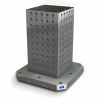
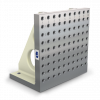
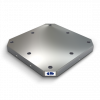
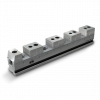
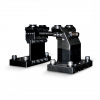
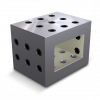
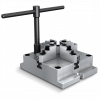
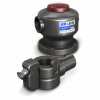
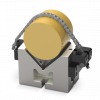

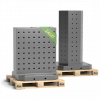



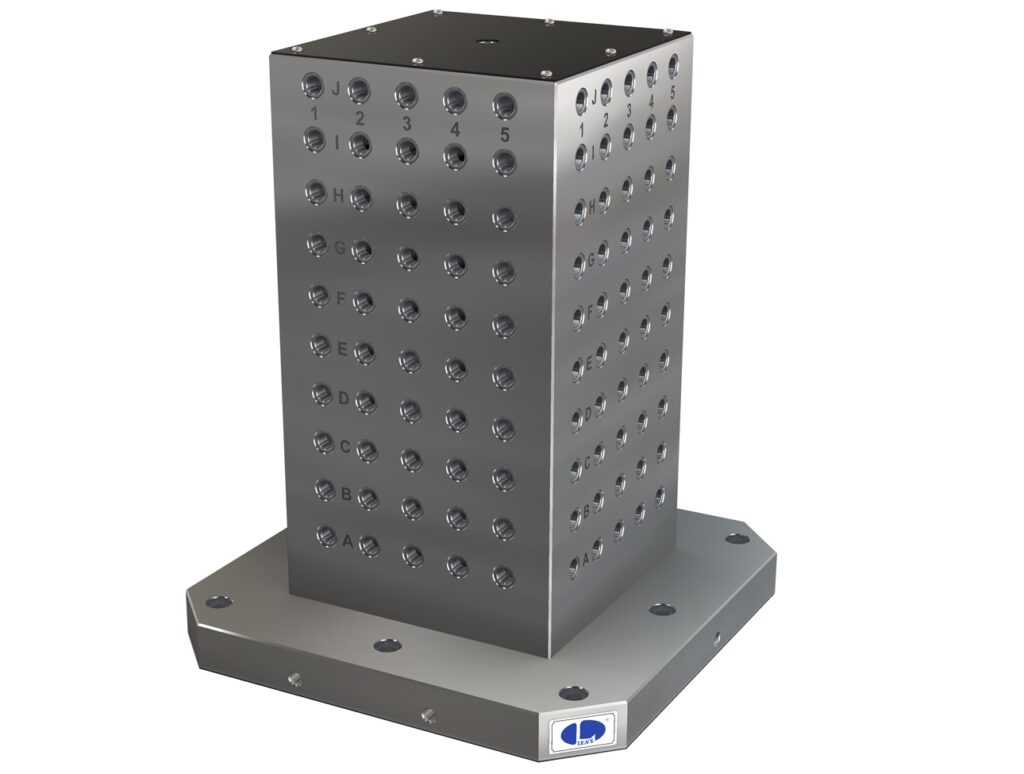
Most shops have fixture drawings somewhere in a binder on the shop floor. The dimensions are there, but the solid geometry is not, which means every time a setup changes, someone is measuring, indicating, or guessing whether the tombstone body is going to clear the spindle head during an aggressive tool path. Loading the actual fixture STEP file into your CAM setup takes five minutes and removes that guess entirely.
Tombstone City provides free CAD files for every product: tombstones, angle plates, sub plates, and modular vises. Available in STEP, IGES, DXF, and SolidWorks format. This post covers where to find them, which format to download for your setup, and how to put them to work in your CAM environment.
What File Formats Are Available and Which One to Download
Tombstone City’s CAD library offers four formats for every product:
- STEP (.stp or .step). The universal solid model format. Works in Mastercam, Fusion 360, HSMWorks, CAMWorks, NX, and virtually every other CAM package without conversion or geometry loss. This is the right download for most shops.
- IGES (.igs). An older neutral interchange format still supported by most CAD and CAM tools. Geometry translates reliably, though some feature types from newer modeling environments do not carry over cleanly. Choose it only when your software does not import STEP.
- DXF. A two-dimensional drawing exchange format. Useful for pulling exact dimensions and hole call-outs into drawing layouts, nesting software, or plate programming. Not a substitute for a 3D STEP file when you need solid geometry in your CAM setup.
- SolidWorks (.SLDPRT / .SLDASM). Native SolidWorks format with full feature history and part hierarchy. Highest fidelity in a SolidWorks environment. Choose this if SolidWorks is your primary CAD platform and you need to mate or modify the fixture model.
For most shops running a major CAM package, download the STEP file. It is the broadest-compatible format and opens cleanly in every common CAM environment without pre-processing.
Where to Download Tombstone City’s CAD Files
There are two places on the site to find CAD files, and both give you the same files.
The CAD Library is organized by product category: tombstones, angle plates, sub plates, modular vises, and 5-axis vises. Click a category, locate the model number, and download the format you need. Every product in the catalog has a file. If a specific configuration is not posted, the team can generate it: email info@tombstonecity.com or call 631-385-9452.
Individual product listings also carry both a 2D PDF drawing and a 3D CAD download link directly on the product page. If you are already looking at a specific tombstone or angle plate, the download is right there without navigating to the library separately.
The 2D PDF is useful at the machine for confirming hole locations and face dimensions without opening CAD software. The 3D file is what goes into your CAM setup.
Importing Fixture CAD Files into Your CAM Software
Every major CAM package has a dedicated fixture component type in the setup environment. The workflow varies by software but follows the same pattern.
In Mastercam, fixture geometry is assigned under the Machine Setup in the Toolpaths manager. In Fusion 360, the fixture tab lives in the setup dialog. HSMWorks, CAMWorks, and BobCAD follow the same logic: import the STEP file, assign it as a “fixture” or “holder” component rather than stock or part geometry, and position it to match how the fixture will sit on your machine table. The CAM system then uses the fixture solid to check every tool path move for interference with the fixture body.
The key distinction is the designation. A STEP file imported as stock geometry tells the CAM system it is material to remove. The same file imported as a fixture component tells the system it is a rigid obstacle that no tool path is permitted to contact. Getting that designation right is what makes the collision check meaningful.
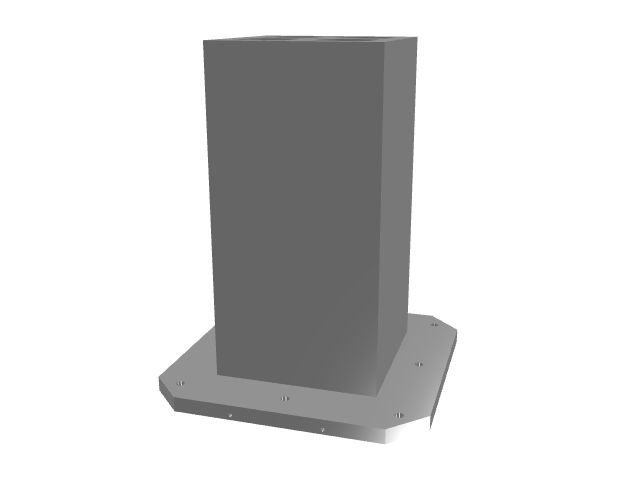
Collision Detection: What Fixture Geometry in CAM Actually Catches
Running tool path verification without fixture geometry in the simulation catches part gouges and air-cutting errors, but it misses the fixture itself. That gap matters most in two specific situations.
Aggressive multi-axis tool paths. On a 5-axis machine, the spindle head and tool holder rotate through a wide range of angles. A tombstone body that looks clear on a top-down view can sit directly in the path of the tool holder at a B-axis tilt of 45 degrees. The CAM simulation catches this before runtime. The machine catches it during a rapid traverse, which costs a fixture, a spindle, and production time.
Long-reach tools over tall fixtures. A long-reach end mill clearing the top of a tombstone face has limited room between the tool holder and the fixture body. With the fixture STEP file in the simulation, CAM flags any approach or retract path that brings the tool holder inside a user-defined clearance zone. Without the fixture geometry, that zone does not exist in the simulation.
Modern Machine Shop has covered how CAD libraries for fixturing components directly simplify the design and programming process by allowing shops to integrate fixture solid models into their workflow rather than building geometry from scratch or skipping the check entirely. The Tombstone City CAD Library eliminates the build-from-scratch step.
Digital Engineering 247 has documented how integrated collision checking in CAM, using real fixture geometry rather than simplified bounding boxes, catches interference conditions that simplified checks miss, particularly on complex multi-sided setups.
Two More Ways to Use Fixture CAD Files
Layout planning before drilling. Use the sub plate and tombstone STEP files together in your CAD environment to confirm hole pattern alignment before committing to a drilled layout. Load the sub plate model, position the tombstone on top of it, and verify that mounting holes line up and that the fixture does not exceed the pallet boundary. Catching a hole pattern mismatch in CAD costs nothing. Catching it after drilling costs the sub plate face.
Quoting and scheduling without pulling the fixture. When a new job comes in on a machine that does not currently have a specific fixture set up, loading the CAD model gives a programmer an accurate picture of the usable work envelope without taking the machine offline to measure. That is useful for confirming whether a part will clear the tombstone faces, generating accurate setup sheets, and setting realistic cycle time estimates before the job is on the floor. The Tombstone City HMC setup guide covers how tombstone dimensions and pallet geometry interact in a horizontal machine setup, and having the accurate CAD model makes that planning considerably faster.
Key Takeaways
A STEP file of your workholding fixture is not an optional add-on to your CAM setup. It is the data that lets your simulation reflect reality rather than an empty machine envelope. Every tombstone, angle plate, sub plate, and modular vise in the Tombstone City catalog has a free file available in the format that fits your CAD and CAM environment.
Download the STEP file. Import it as a fixture component. Run verification. That process catches the fixture collisions, clearance violations, and tool holder interferences that cost real money to discover at the machine.
Free CAD Files for Every Tombstone City Product
Tombstone City’s CAD Library has free STEP, IGES, DXF, and SolidWorks files for every tombstone, angle plate, sub plate, and modular vise in the catalog. Download by product category or directly from any product listing page. If the exact configuration you need is not posted, reach the team at 631-385-9452 or info@tombstonecity.com. Browse and download at the Tombstone City CAD Library.